
The following is a list of features and apps that I currently use on my iPhone 13 running iOS 16.2, and some other apps I’ve used in the past, with links to any posts I’ve made about them. Also check out my blog post giving my first impressions of the iPhone 13, and do let me know if you have any recommendations for features and apps I should check out.
Contents
Settings
Access Features
I’m really pleased that the Accessibility option is now a main menu item in its own right, instead of being tucked away under the General heading like it used to be.
Here are some of the options that I’m using, which are just scratching the surface of what you can find here.
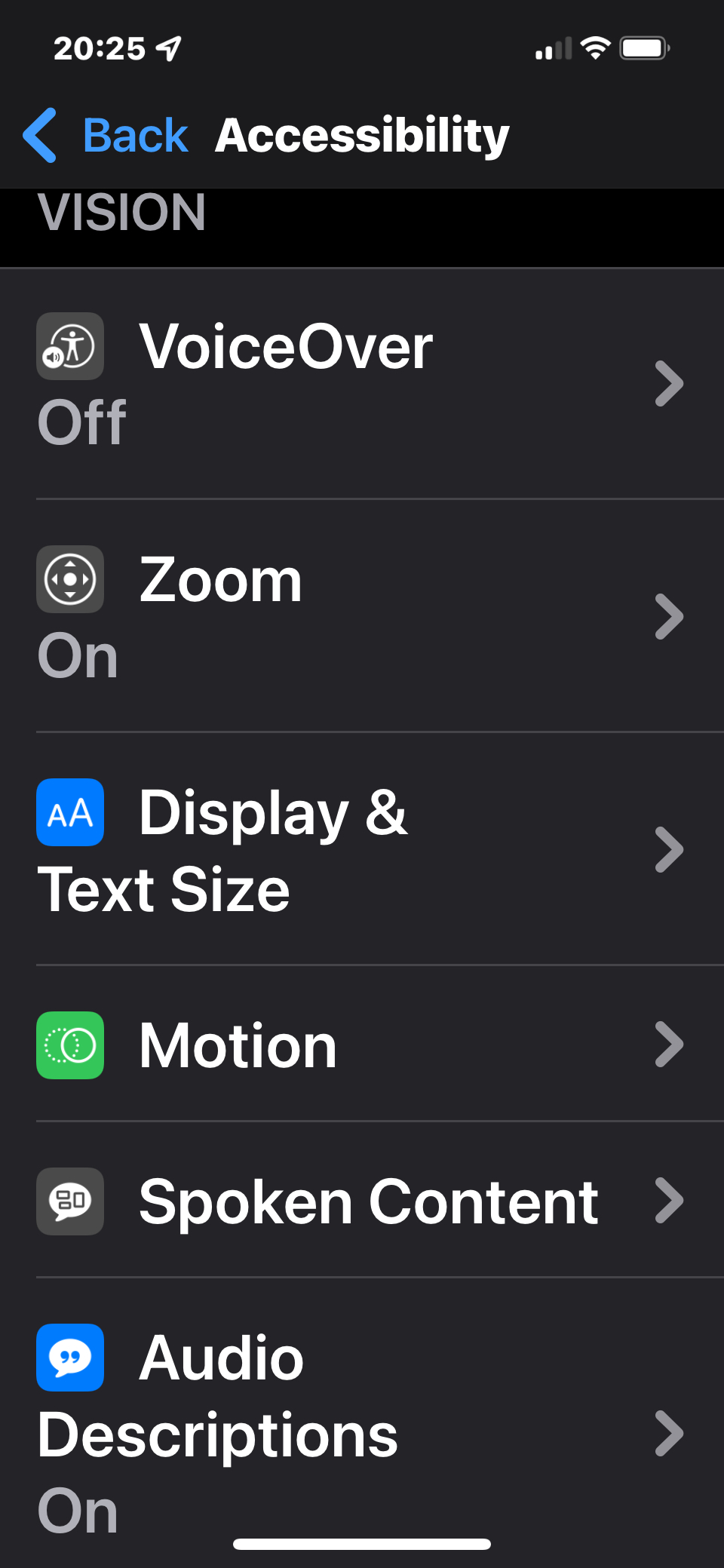 Zoom – This allows me to use a 3-finger double-tap gesture to zoom in on the screen.
- Display & Text Size > Smart Invert – This flips the screen colours, so that I have black backgrounds with white text, which reduces glare and greatly improves contrast. But it won’t invert photos and videos, as you obviously need to see those properly. It also won’t invert apps that have their own Dark/Night modes enabled (and the iPhone now has its own Dark mode too, as noted below)
- Display & Text Size > Bold Text, Larger Text, Reduce Transparency & Increase Contrast – These all help to make things bigger and more prominent, so they’re even easier to read.
- Spoken Content – While I don’t use the VoiceOver screen reader, I do have options enabled here, so that I can use specific gestures to make the phone speak selected text or the entire screen, as it is easier to have things read to me in that way sometimes.
- Audio Descriptions – If I were to download any films or shows from Apple TV, this will enable audio description to be played automatically, when it’s available.
- Touch > Back Tap – This allows you to double-tap or triple-tap the back of the phone to perform system tasks, accessibility actions or trigger shortcuts. So I’ve enabled that as well, but I’ve found it rather hit-and-miss, as it often doesn’t react to the taps.
- Accessibility Shortcut – This allows me to activate the accessibility features of my choice by triple-clicking the side button. If just one item is selected, the triple-click will switch it on or off straightaway, but if multiple options are selected, then they’ll appear in a menu instead. As well as Smart Invert and Zoom, I also have Magnifier enabled here, as that’s a really useful app that lets me use the camera to read and look at things close-up (and it lets you change the brightness, contrast, colour filters, etc). I also have it as an option in the Control Centre as well.
- Per-App Settings – This allows you to customise which accessibility features are active when using certain apps. That’s a really useful addition, because some apps don’t work well with things like Smart Invert or larger text sizes. So I’ve already used it to turn off Smart Invert for a few apps that don’t look right when it’s switched on.
Display Options
Under Display & Brightness on the main Settings menu, there are also a couple of other options that I’ve enabled:
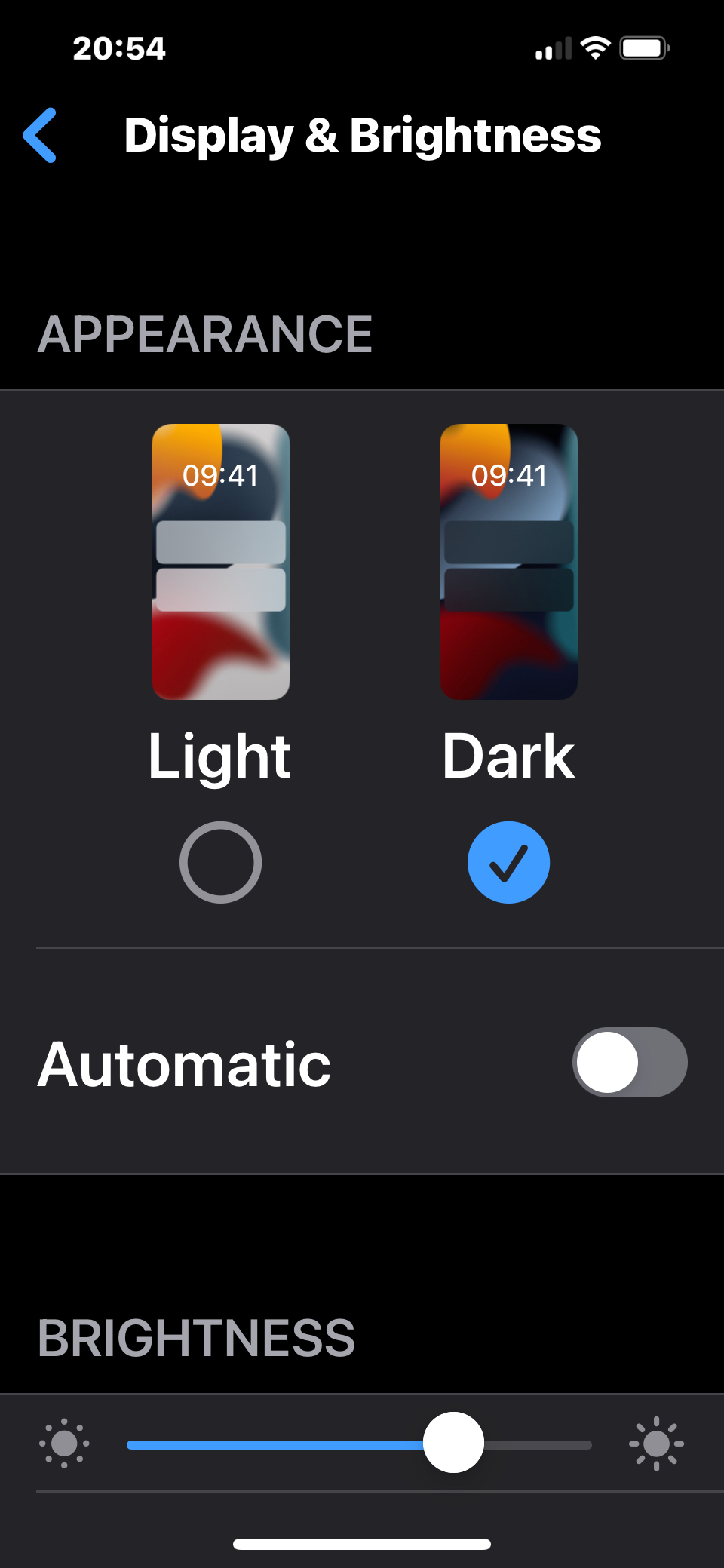 Dark Appearance – This inverts the menus, toolbars and skins of apps so that they have a dark background and light text. But it won’t always invert the pieces of content they display, depending on how the app has been set up. And some apps have their own Dark/Night modes that I’ve enabled too. This is different to Smart Invert, which changes everything apart from images or videos, and it also won’t invert anything that Dark Mode has already done. So it’s safe to have both options on together. Safari illustrates this best – Dark Mode will invert just the app toolbars and menus, but websites will still have white backgrounds, whereas Smart Invert will flip the web sites as well. You can also set a schedule to switch between the Light and Dark modes if you want, such as sunset to sunrise or customised times.
- Display Zoom – This is a new feature that enlarges the controls on the phone. This is different to the Zoom accessibility feature above, which lets you manually zoom in and out on the screen.
- The options for bold and enlarged text can also be found in this area of the Settings app.
Apps
Current Apps
Apart from the standard pre-installed apps that come with the iPhone, here are a selection of other apps that I use:
- Communication & Social Media:
- News & Weather:
- Camera:
- Scanner Pro – For scanning documents. It detects page edges automatically and combines scans into multi-page PDFs.
- Seeing AI – Free Microsoft app that recognises text, handwriting, products, currency, faces, etc, and speaks the details to you.
- Entertainment:
- Audible
- BBC Sounds
- Youtube
- Sennheiser Mobile Connect – Occasionally used for live audio description at theatre shows. I’ve used it at Wicked and We Will Rock You.
- Travel – Planning & Navigation (see blog post):
- Google Maps
- Citymapper – For public transport in London.
- Moovit – For public transport in unfamiliar locations.
- Strava – I’ve been using this to record my walks since August 2020, syncing the data with CityStrides to produce a full map of everywhere I’ve been. This motivates me to walk further as I explore the city and try to fill out as much of the map as I can. Strava subscribers can also use Heatmaps for this purpose, while other free options for combing maps include Multiple Ride Mapper, Stats Hunter & Wandrer.
- Travel – Railways:
- National Rail Enquiries – For checking times, platforms, delays, etc.
- Trainline – For booking train tickets.
- TfL Go – Accessible travel app by Transport for London.
- Station Master – 3D maps and information about London’s Tube stations.
- London:
- Eventbrite – Occasionally used for tickets for events.
- Spice Social – App for the Spice social group I’ve joined.
- Shopping:
- Health:
- NHS App – For accessing information, services, medical records, etc.
- Apple Health – This pre-installed app is worth listing because, among its many features, it allows you to set up a Medical ID with important information that can be accessed by anyone quickly and easily from your lock screen in an emergency. So it’s worth filling it in.
- Utilities:
- Amazon Alexa
- Google & Google Drive
- HP Smart – For communication with my printer.
- Google Authenticator & Microsoft Authenticator
- Sonos – For updating and calibrating my TV sound bar.
Previous Apps
Here are a selection of apps I’ve used or experimented with in the past. Some are no longer available or have different features since I used them.
- Tours:
- Audio Eyes – Audio description app for a few of the Science Museum’s galleries. See my review of the Information Age gallery.
- Any Tour (formerly Cities Talking) – Walking tour app I’ve used a few times.
- Frieze Art Fairs – I used this to explore the Frieze Sculpture Park in Regent’s Park in August 2019.
- Pocket Guide London – I enjoyed doing a few tours with this app, as it was interesting to listen to and directed you clearly using GPS-triggered audio.
- Tate – App for browsing the Tate Modern, with a couple of audio tours that I tried.
- TrailTale – Walking tour app that I wasn’t impressed with.
- Events:
- Meetup – For social events, but I’ve very rarely used it so haven’t kept it.
- Smartify – Uses the camera to recognise art and give details about it, for selected museums in London and worldwide. I’ve used it at the Wallace Collection and Guildhall Art Gallery. Haven’t needed it for a while though.
- Fun & Games:
- Super Tile Smash – Tile-matching game, mentioned in my February 2019 Favourites.
- Thinking Bob – Social group I met up with several times during my early days in London, which really helped me to settle in to the city.
- Video & Audio:
- Clipomatic – Uses voice recognition to generate subtitles in real-time when you record videos. You can then edit to fix errors. It’s great for captioning videos for social media, and I used it when promoting my charity abseil.
- MoviePro – The main Camera app on the phone is perfectly fine for my needs, but I’ve used this more powerful app for Aniridia Network conference recordings, as it supports the use of external microphones.
- Soundscape – A discontinued Microsoft app giving 3D audio information about your surroundings, which has since been recreated by Scottish Tech Army. I demonstrated the Microsoft app in my documentary What Is Normal?, as it’s very handy for many people, but I don’t have much need to use it personally.
- Covid:
- NHS Covid-19 App – Contact-tracing app that anonymously checked whether you had been in close proximity to other app users who tested positive for Covid. It was discontinued in 2023 after all the progress in vaccinations, testing and treatments.
- ZOE Health Study App – I was among millions of people who used this app during the height of the Covid pandemic, as answering a few quick and easy questions each day helped researchers track the spread of the virus. The app is still running, as the researchers are using it to monitor a wider range of global health issues, but I fell out of the habit of updating it and got rid of it in the end.
- Utilities:

 Well Eye Never
3 thoughts on “iPhone 13 Accessibility Features & Apps”